Back Office Automation Examples, With the Controls That Keep Them Safe
Ten back office automation examples with exact controls: three-way match tolerances, duplicate invoice checks, bank-detail call-backs, timesheets and filing.
Luka Abramovic16 min read
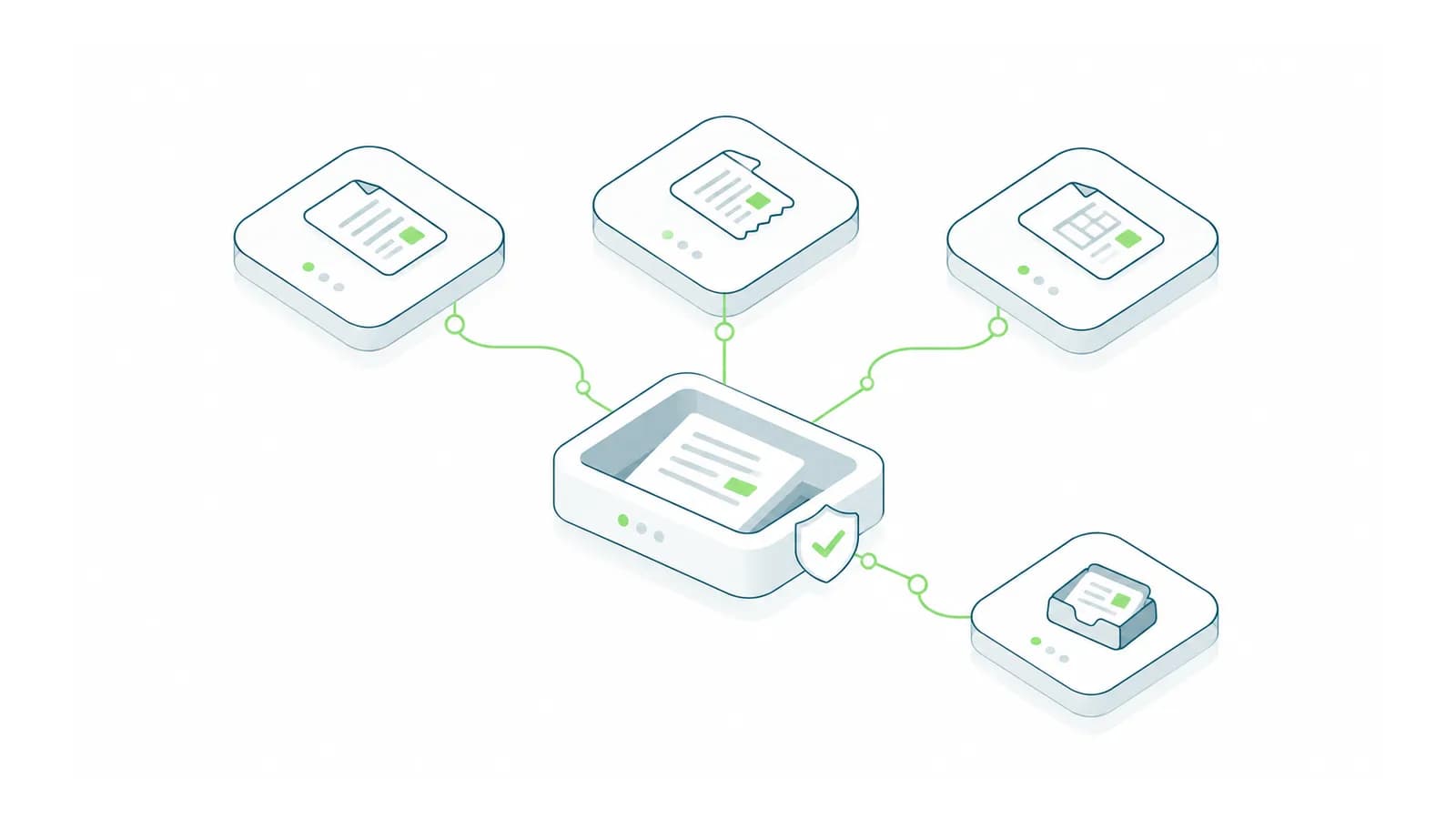
The back office automation examples worth copying are the ones where the control is written down precisely: a three-way match with numeric tolerances, a duplicate check that normalizes invoice numbers before comparing them, and a rule that no payment goes to changed bank details until someone has called the supplier back on a number already on file. Automation takes over the copying and chasing. Each example below names its trigger, what stays with a person and the exception that most often breaks it. The workflows are illustrative, not specific client results.
1. Supplier invoice matching (three-way match)
Trigger: a supplier invoice arrives by email or through a supplier portal.
Automated: capture supplier, invoice number, dates, lines and totals; find the purchase order and goods receipts; compare them against written tolerances; route passes to approval and failures to a named person with the variance shown.
Stays human: approving payment, resolving mismatches and setting the tolerances.
The exception that breaks it: partial deliveries, and invoices that arrive before the goods are booked in.
What is being matched
A three-way match compares three documents line by line: the purchase order (what you agreed to buy, at what price), the goods receipt (what arrived) and the invoice (what the supplier is billing). Price is checked invoice against order. Quantity is checked invoice against receipt, because you pay for what arrived. A two-way match compares only invoice and purchase order, which fits purchases where nobody books a receipt, such as services and subscriptions. Dynamics 365 Finance sets the matching policy per company, item, supplier or item and supplier combination, and Microsoft's own example is a controller who wants two-way matching for purchase order invoices generally and three-way for items bought as fixed assets (three-way matching policies).
What "within tolerance" means in numbers
Each rule needs three things written down: what is compared, how far it may differ, and whether the check runs per line, per invoice or cumulatively. An illustrative starting set, for your finance lead to adjust:
| Check | Compares | Illustrative tolerance | Applies to |
|---|---|---|---|
| Unit price | Invoice net unit price with purchase order net unit price | 2% over; anything under passes and is logged | Each line |
| Price total | Line net amount, plus earlier invoices on the same order line, with the order line's net amount | 5% or 250.00 over, whichever is reached first | Each order line, cumulative |
| Quantity | Invoiced quantity with received quantity not yet invoiced | Nothing over | Each line |
| Charges | Freight and other charges with charges on the order | 10% or 50.00 over | Each invoice |
| Invoice total | Invoice total with the total expected from order prices and invoiced quantities | 5.00, for rounding and tax differences | Each invoice |
Two details do most of the work. First, give price tolerances a percentage and an amount, and fail the line if either is exceeded: 2% of a 40.00 line is 0.80, while 2% of a 400,000.00 line is 8,000.00. Microsoft's documentation calls the amount a "not-to-exceed" amount (invoice matching overview). Second, make the price-total check cumulative. The same Microsoft page walks through a purchase order for 1,000 USB drives at 10.00, invoiced at 10.80 on three invoices of 800, 100 and 200 units. Every invoice passes a 10% unit price tolerance. The third fails a price-total tolerance of 15% or 500.00, because across all three invoices the variance has reached 1,880.00, and together they bill 1,100 units against an order for 1,000. A check that looks at one invoice at a time never sees it.
The exception that breaks it
One invoice may cover two deliveries, or arrive before anyone has booked the receipt. Match the invoice quantity against the total of receipts not yet invoiced, not against a single receipt. When the receipt doesn't exist yet, hold the invoice rather than rejecting it, re-run the match each morning, and after a set period (five working days, illustrative) escalate to the person who placed the order. An early invoice is often a receiving backlog rather than a supplier error, so the escalation goes inside the business first.
2. Duplicate invoice detection
Trigger: every invoice before approval, plus a weekly sweep of the last twelve months of posted invoices.
Automated: normalize invoice numbers, compare against open and posted invoices, and flag likely pairs before anyone approves either.
Stays human: deciding whether a flagged pair is a real duplicate.
The exception that breaks it: suppliers who legitimately bill the same amount every month.
An exact-match check misses the duplicates that actually get paid, because the second copy is rarely keyed the same way: INV-00123 against 123, a trailing space, the letter O typed for a zero. Normalize both numbers, then compare. A developer can implement this in the accounts payable system, the integration or a scheduled query, and a finance lead can read it to check the rules:
normalize(invoice_number):
    s = uppercase(invoice_number)
    s = remove every character that is not A-Z or 0-9   # "inv-00123 " becomes "INV00123"
    s = remove one leading prefix, trying the longest first:
        INVOICE, INV, NO                                 # "INV00123" becomes "00123"
    s = replace letter O with 0 and letter I with 1      # "0O123" becomes "00123"
    s = remove leading zeros                             # "00123" becomes "123"
    return s

flag invoices A and B as possible duplicates when:
    A.supplier = B.supplier
    and (
        normalize(A.number) = normalize(B.number)
        or ( A.gross_amount = B.gross_amount
             and days between A.invoice_date and B.invoice_date <= 30 )
    )

run the same test across different supplier records that share a tax ID
or a bank account, because a duplicate supplier record defeats any
same-supplier check.
The prefix list and the 30-day window are illustrative: add the prefixes your suppliers use, and shorten the window for suppliers who often bill identical amounts. The order of the steps matters. Strip the prefix before mapping letters to digits, or the I in INV becomes a 1 and the prefix no longer matches.
Check what your system already does, and where it stops. Two examples from Dynamics 365 Finance: the Check the invoice number used parameter can be set to reject duplicates only within a fiscal year, using the posting date (vendor invoice dates), so the same invoice posted either side of year end passes. And the invoice capture feature's duplicate check compares file checksums, which catches the same PDF received twice but not the same invoice rescanned or re-sent as a new file. Microsoft notes that checking for a repeated invoice number there needs a custom extension (invoice capture files).
For the exception: rent, retainers and subscriptions bill the same amount every period, so the amount rule flags every one. Mark those suppliers as fixed recurring, apply only the number rule to them, and add a check that each period has exactly one invoice.
3. Supplier bank-detail changes
Trigger: any request to change a supplier's bank details, by email, portal, letter or phone, and any change to the bank fields on a supplier record, however it was made.
Automated: detect the change, hold payments to that supplier until a call-back is logged, and send the first payment to the new details to a second approver.
Stays human: the call-back and the second approval.
The exception that breaks it: a request that also changes the supplier's phone number.
This is the control business email compromise attacks. A fraudster, sometimes writing from a supplier's real but compromised mailbox, asks you to update bank details before the next payment run. The FBI's Internet Crime Complaint Center titled its 2024 warning on the scheme "Business Email Compromise: The $55 Billion Scam". The standard control is simple and has to be strict: confirm any change to payment details by calling the supplier on a number you already had on file, never a number supplied in the request (FBI guidance on business email compromise). The automation's job is to make that control impossible to skip:
- Detect every change, however it was made. Snapshot the bank fields (account number, routing number, account name, remittance email) for every supplier each night and compare with the previous snapshot. A change made on screen, by import or by an integration shows up the same way.
- Hold, don't warn. Put the supplier on payment hold until a call-back is logged: who called, when, the number dialed and who at the supplier confirmed.
- Check the number dialed against history. If the same request also changed the supplier's phone number, a call to "the number on file" reaches the fraudster. Compare the dialed number with the contact details as they stood before the request, and treat any contact change in the previous 30 days (illustrative) as part of the same request.
- A second approver on the first payment. The first payment to new details goes to a second approver, who sees the change, the call-back record and the amount, even when the payment is within the first approver's limit.
- Separate the roles. The person who received the request doesn't make the call-back or approve the payment.
Then check whether your system's own approval covers every route into the supplier record. In Dynamics 365 Finance, the vendor bank account approval workflow has one setting for edits made on screen and a separate one for updates arriving through the data entity that imports and integrations use, and one option for the latter is Allow changes without approval (vendor bank account workflow). An integration that syncs supplier details from a portal or CRM can quietly become the way around your fraud control.
4. New supplier and customer setup
Trigger: a supplier is approved, or a deal is marked won.
Automated: search for an existing record first; then create the records in accounting, operations and any portal from the approved record, with payment terms, tax status and category copied rather than retyped, and one ID shared across every system.
Stays human: credit limits, and confirming the counterparty is who they claim to be.
The exception that breaks it: the entity that already exists under a slightly different name.
The search before creating is the part that matters. Match on tax ID first, then bank account, then a normalized name: uppercase, punctuation removed, and legal suffixes such as INC, LLC, LTD and CORP dropped, so "Acme Holdings, L.L.C." and "ACME Holdings LLC" meet. A tax ID match means the same entity, so link rather than create. A bank account that matches a different existing supplier means stop and send it to a person, because it is either a duplicate record or the first step of a payment fraud. On the customer side, matching CRM and accounting identities has its own key and merge rules.
5. Order to invoice handoff
Trigger: work is marked complete, or a delivery is confirmed.
Automated: draft the invoice from the order plus recorded change orders, apply the contract's billing rules, and hold the draft for review rather than sending it.
Stays human: sending, and any invoice to a customer with an open dispute.
The exception that breaks it: scope agreed verbally and never recorded.
Make the gap visible instead of guessing. If time or materials were booked to the job beyond the order and no change order covers them, the draft arrives with that list attached ("12 hours and two material issues not covered by the order or a change order"), and someone decides whether to bill, write off or raise a change order. Over a few months the list shows where scope is being agreed without being recorded, which is the fix upstream.
6. Timesheet preparation for payroll
Trigger: the end of each workweek, and the payroll cut-off.
Automated: collect submissions, build and send the chase list, apply overtime and allowance rules per workweek, and produce the payroll file with exceptions listed separately.
Stays human: approvals, judgement on unusual claims, and owning the rules with whoever is responsible for payroll compliance.
The exception that breaks it: the person who hasn't submitted.
The chase list is the real output
Chasing is most of the work here, so build the chase list before the payroll file: for each missing or incomplete timesheet, the person, their manager, the days missing, hours submitted so far and the last reminder sent. An illustrative schedule for a workweek ending Sunday and a payroll cut-off on Tuesday at 2 pm: Monday 9 am, a reminder to the person; Monday 3 pm, a list to each manager showing only their team; Tuesday 10 am, the remaining names to the payroll lead. The payroll file never silently leaves anyone out. Someone with nothing submitted appears as a line with zero hours and the status "not submitted", so the gap is seen before anyone is paid wrongly.
Encode overtime per workweek
Overtime rules come from law, and the automation has to carry them exactly. Under the federal Fair Labor Standards Act, non-exempt employees must be paid at least one and a half times their regular rate for hours worked over 40 in a workweek (U.S. Department of Labor, overtime pay). The workweek is a fixed, recurring period of seven consecutive days set by the employer, and hours can't be averaged across two or more weeks. An illustrative two-week pay period shows why that matters: 45 hours in week one and 35 in week two total 80, which looks like no overtime, yet week one carries 5 overtime hours. Some states add their own rules; California, for example, also requires overtime for hours over eight in a workday. So the rule is per employee, per workweek and per state, and it is set by whoever owns payroll compliance, with your payroll provider or employment counsel. This is an example of a rule an automation must encode, not legal advice.
7. Recurring reconciliation between systems
Trigger: a schedule, daily or at period end.
Automated: compare both sources on an agreed key and sort every difference into a category, with its age in days.
Stays human: deciding which side is right, and fixing it.
The exception that breaks it: timing.
Our default is four categories: matched; missing on one side; amount or quantity differs; and timing, meaning recorded on one side and expected on the other by a known date. Report the count and total for each category, and age every open difference. Timing differences are their own category, not errors: record the date each should clear and escalate only those still open after it. The cut-off and period rules that set those dates, and the control totals that prove the comparison ran on complete data, are covered in our ERP integration best practices.
8. Document filing and naming
Trigger: a document arrives or is produced.
Automated: derive the date, counterparty, type and reference; name and file the document; record the same values as metadata.
Stays human: anything the automation isn't confident about, and correcting wrong derivations.
The exception that breaks it: confident wrong filing. A document under the wrong project is harder to find than one never filed, so anything below the confidence threshold, or with a counterparty not on the list, goes to an "unfiled" queue with its proposed name for a person to confirm.
A naming convention you can adopt today
YYYY-MM-DD_Counterparty_DocType_Reference[_vNN][_signed].ext

2026-10-08_AcmeSupply_INV_10432.pdf
2026-09-30_BrightlineLLC_SOW_PRJ-2291_v02.docx
2026-09-30_BrightlineLLC_SOW_PRJ-2291_v03_signed.pdf- Date first, as year-month-day with zero padding, the ISO 8601 order. Sorted alphabetically, these names come out in date order, because the most significant part comes first and every part has a fixed width. Month-day-year names sort every January together, whatever the year. Use the document's own date (invoice date, contract date), not the scan or upload date.
- Counterparty from a controlled list: one short name per supplier or customer, no spaces, kept alongside the supplier and customer records rather than typed each time.
- DocType from a fixed code list, for example INV invoice, CN credit note, PO purchase order, SOW statement of work, MSA master agreement, CO change order. Keep it short enough to remember.
- Reference is the counterparty's document number or your project number.
- Revisions are
_v01,_v02, with two digits so v10 sorts after v09. Never "final" or "latest". The executed copy adds_signed. - Characters: letters, digits, hyphens and underscores only, with underscores reserved for separating fields, so a reference like PRJ-2291 keeps its hyphen. Windows forbids
< > : " / \ | ? *in file names and advises against ending a name with a space or a period (Microsoft's file naming rules). Keep names short too. Unless long paths have been enabled by registry or Group Policy, Windows limits a full path to 260 characters, and a synced document library's local path uses part of that before your first folder.
9. Recurring report assembly
Trigger: a schedule tied to an operating rhythm, such as a weekly management meeting.
Automated: pull the inputs, apply the agreed definitions, and stamp every figure with its source, as-of time and status.
Stays human: interpretation, and the decision the report exists to support.
The exception that breaks it: a missing input.
Stamp each figure, not just the report. The as-of time is when the data was true, not when the report ran:
Revenue, September to date      412,300
  Source: accounting system GL export   As of: 2026-09-30 23:59   Status: complete

Open orders                     MISSING
  Source: order system export   Expected by: 2026-10-01 06:00   Status: not received
  The previous value (2026-09-29) has not been carried forward.

Cash position                   1,084,550
  Source: bank feed   As of: 2026-09-28 17:00   Status: STALE (older than 26 hours)
Set a staleness threshold per source. For a daily feed, 26 hours is an illustrative allowance for one late run. When an input is missing, say so on the page and mark every total that depends on it as incomplete. An automation that quietly substitutes last period's figure produces a number that is wrong in a way nobody notices until a decision has been made on it.
10. The exception queue itself
Trigger: anything above that didn't complete or didn't pass a check.
Automated: collect every failure in one place, with enough context to act without reading a technical log.
Stays human: clearing the queue daily, and spotting an exception that recurs often enough to deserve its own rule.
The exception that breaks it: nobody owns it. What each exception record must contain, and how to keep a queue from being ignored, is covered in our guide to connecting business systems. Where one of the systems above has no usable API, our comparison of workflow automation and RPA covers when driving the screen is the right answer.
Choosing which one to do first
Volume is the obvious criterion and usually the wrong one on its own. A daily task that takes ten minutes and never goes wrong is a poorer candidate than a weekly task that takes an hour and produces an argument every time. Controls change the calculation too: the first three examples stop money leaving the business wrongly, so one prevented payment can justify them.
| Criterion | Good candidate | Poor candidate |
|---|---|---|
| Rules | Written as numbers and conditions the process owners agree on | Depend on one person's judgement each time |
| Inputs | Available from systems, with stable identifiers | Arrive by email or verbally, with no record |
| Failure cost | Visible quickly and recoverable | Silent, financial and discovered late |
| Ownership | A named person wants it and will use it | Requested by someone who doesn't do the work |
| Exceptions | A known, countable set | Every case is slightly different |
If the people doing the work say every case is different, test it rather than argue. Ask for the last 20 cases and sort them together. If most fall into three or four patterns, automate those and route the rest to a person. If they don't, the process isn't ready to automate yet.
If one of these describes work your team repeats, bring the process, the systems it touches, last month's volume and three recent exceptions. We would look first at the control inside it, whether that is the tolerance, the duplicate rule or the approval, because that decides what can safely be automated. Our business automation work starts with a single workflow like these.