ERP vs CRM: Which Records Live Where and How the Handoff Works
ERP vs CRM, record by record: who owns customers, prices, credit, orders and invoices, the quote-to-cash handoff, and the integration decisions that follow.
Luka Abramovic21 min read
ERP vs CRM comes down to one line: the CRM owns everything before a customer commits, and the ERP owns everything that creates an obligation, from the billing customer and its credit limit to prices, orders, invoices and payments. Microsoft's connector between Dynamics 365 Sales and Business Central draws the line there by default: a Sales account becomes an ERP customer only when its relationship type is Customer (Microsoft Learn). The new customer takes its finance fields from a template, and in Business Central a blank credit limit means no limit (Microsoft Learn). A template without one gives every customer the CRM creates unlimited credit.
This guide follows that line record by record, through the quote-to-cash handoff and the four decisions it forces, and ends with a check and a worksheet. Vendor behavior is as of September 2026. The general method for giving each field one owner is in our guide to connecting business systems.
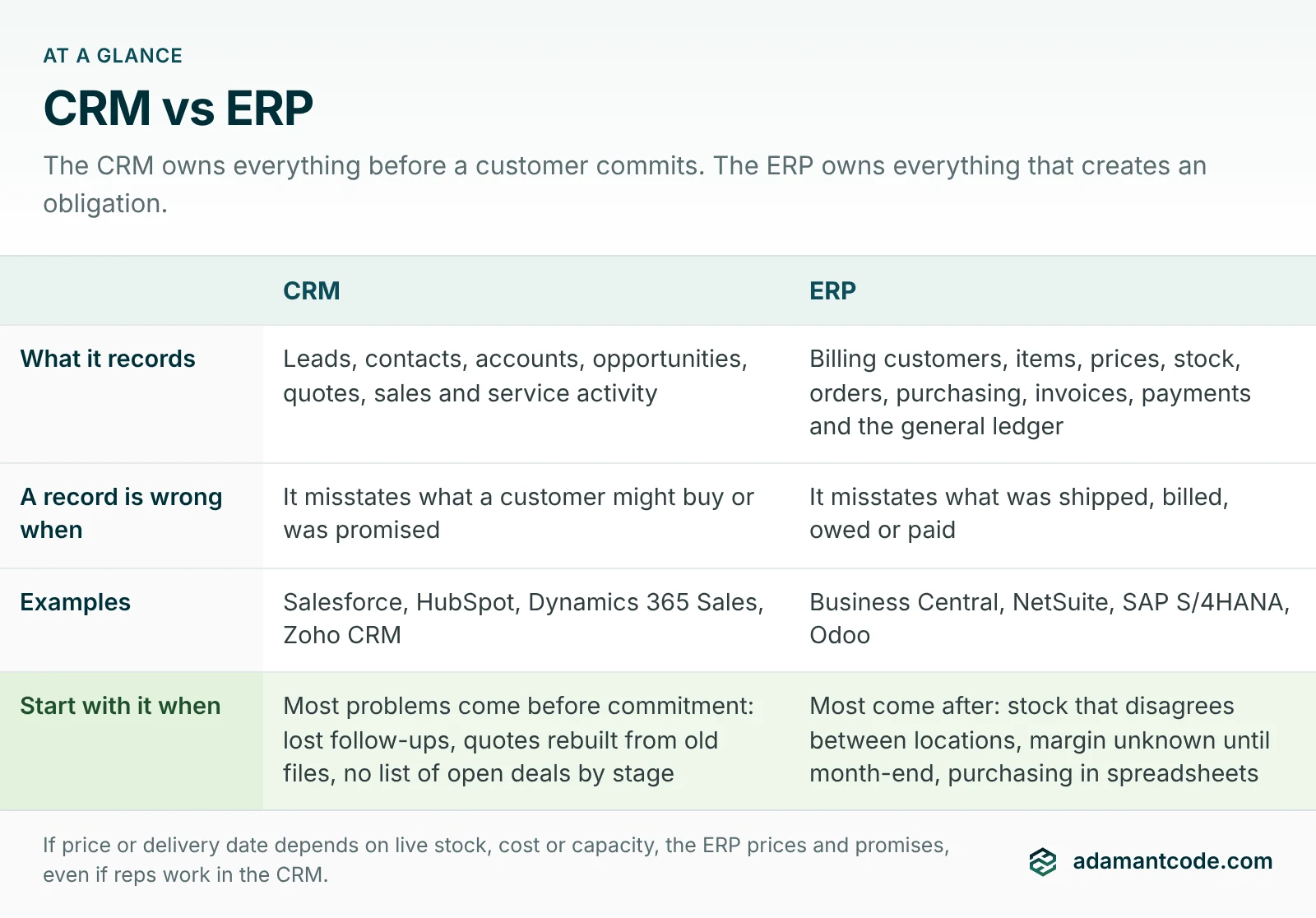
ERP vs CRM in one table, and which you need first
| Question | CRM | ERP |
|---|---|---|
| What it records | Leads, contacts, accounts, opportunities, quotes, sales and service activity | Billing customers, items, prices, stock, orders, purchasing, invoices, payments and the general ledger |
| A record is wrong when | It misstates what a customer might buy or was promised | It misstates what was shipped, billed, owed or paid |
| Examples | Salesforce, HubSpot, Dynamics 365 Sales, Zoho CRM | Business Central, NetSuite, SAP S/4HANA, Odoo |
Which you need first depends on which side of the line your problems fall. Pull the last 20 escalations: complaints, write-offs, "where is my order?" emails, month-end corrections. Mark each one as before or after commitment, meaning before or after the customer accepted a quote or placed an order. Then read across this table.
| What the 20 escalations show | Start with | Why |
|---|---|---|
| Mostly before commitment: lost follow-ups, quotes rebuilt from old files, no list of open deals by stage | A CRM | That is pipeline, follow-up and quote-version work, which is what a CRM is built for. |
| Mostly after: stock that disagrees between locations, margin unknown until month-end, purchasing in spreadsheets | An ERP, or a bigger accounting and inventory system | A CRM has no stock, costs or ledger to fix. |
| You have both, and the complaints are re-keyed orders and "has it shipped? has it been paid?" | Neither. Connect the two. | The records exist but don't cross the line. |
| Price or delivery date depends on live stock, cost or capacity | The ERP prices and promises, even if reps work in the CRM | A price list copied into a CRM can't know today's stock or cost. This is the row that changes most people's answer. |
| The same few people sell, ship and invoice | One suite covering both: NetSuite, Odoo and Business Central each include CRM features | No sync to maintain. The four decisions below still apply. |
If your back-office system is QuickBooks Online, read our guide to outgrowing QuickBooks before you shop for an ERP. It covers what actually breaks first.
Record by record: what lives where
For each record: its owner, the copy the other system holds, and what Microsoft's standard mapping between Business Central and Dynamics 365 Sales does by default (standard table mapping, Sales entity mapping, customer field mapping in the Business Central source). Use the table as the first draft of your own.
| Record | Owner: creates and corrects it | Copy in the other system | Microsoft's default |
|---|---|---|---|
| Leads and prospect accounts | CRM | None | Only Sales accounts with Relationship Type Customer and Status Active sync. |
| Contacts (people) | CRM | Contacts under a billing customer | Both ways, for people assigned to a company. |
| Billing customer: legal name, tax status, payment terms, currency | ERP, created at the CRM's request | ERP customer number and read-only billing fields on the CRM account | Both ways, payment terms and currency included. The credit limit goes ERP to CRM only. New customers get finance fields from a template. |
| Bill-to, ship-to and payer structure | ERP | A read-only list the rep picks from | No standard mapping. Ship-to addresses sit under the Business Central customer, each with its own salesperson if set. |
| Items, services and units of measure | ERP | Product catalog, read-only | The item mapping allows both ways, but the default job runs ERP to CRM. Units of measure go one way. |
| Price lists and customer price groups | ERP | Price lists for quoting | One way, ERP to CRM, and only lists without a minimum quantity. |
| Quote | CRM, priced from ERP data | Optional copy in the ERP | Activated quotes can be processed into Business Central quotes, with earlier revisions archived. |
| Sales order | CRM until submitted, ERP after | CRM copy, read-only, with ERP status | Submitting locks the lines in Sales. The order arrives in Business Central as Released. |
| Stock availability | ERP | A figure the rep sees, with its age | Every 30 minutes, if automatic availability sync is on. |
| Credit limit, exposure and hold | ERP (finance) | A verdict only | Business Central warns but lets you post. Blocking is a separate field, and it doesn't sync. |
| Shipment | ERP | Order status and last shipment date | Shipping sets the Sales order to Fulfilled. |
| Invoice | ERP, the only issuer | Read-only copy | One way, arriving in Sales as Billed. The standard mapping has no row for credit memos. |
| Payment and balance | ERP | Invoice status and account statistics | Paid, with status reason Partial or Complete. Statistics refresh every 30 minutes by default. |
Watch the invoice row if your CRM can bill. HubSpot can issue invoices, and its QuickBooks Online data sync can run invoice sync both ways. Published HubSpot invoices sync to QuickBooks Online and pick up payments made in either system, except that a payment applied to more than one invoice in QuickBooks Online doesn't sync to HubSpot (HubSpot Knowledge Base). Two issuers mean two numbering sequences and two places to miss a credit note, so pick one, normally the accounting system, and let the other hold copies. And don't read balances from the CRM's invoice status: a customer who paid several invoices with one payment can still look overdue there.
This week: in the CRM, filter accounts that carry an ERP customer number but are still marked as prospects. In the ERP, list customers created in the last 90 days that have no CRM reference. The first list is customers your sales team doesn't know it has. The second is customers whose orders the CRM will never forecast.
The quote-to-cash handoff, step by step
Each step from priced offer to money in the bank happens in one system and sends something across the line. This is our default sequence.
| Step | Done in | Trigger | What crosses the line |
|---|---|---|---|
| 1. Quote | CRM | Rep prices the deal | Nothing yet, or a copy of each revision |
| 2. Customer check | ERP | Customer accepts | ERP customer number back to the CRM, or a new-customer request to finance |
| 3. Credit check | ERP | The order request | Verdict (OK, warning or hold) and the time checked |
| 4. Submission | CRM | Rep submits the accepted quote | Header, lines, CRM reference and the customer's PO number. The CRM copy locks. |
| 5. Order created | ERP | The submission arrives | ERP order number back to the CRM |
| 6. Fulfillment | ERP | Pick, ship, deliver | Status and last shipment date |
| 7. Invoice | ERP | Shipment or billing schedule | Read-only invoice copy |
| 8. Payment | ERP | Cash applied to the invoice | Invoice status and account balance |
| 9. Change or return | ERP, requested from the CRM | Order changed or goods returned | Change request out; revised order, credit memo and status back |
Two timing rules follow. Anything a rep uses to promise (price, stock, credit) must be current at submission: look it up live, or have the ERP check again when the order arrives. Microsoft's defaults refresh availability and customer statistics every 30 minutes, and Microsoft says its scheduled sync doesn't guarantee real-time consistency (Microsoft Learn), so a synced figure can be half an hour old, or older if a job fails. Anything that only reports (shipments, invoices, payments) can travel on a schedule, if the CRM shows when it last updated.
Where a copy would always be stale, show the ERP's data without storing it. Microsoft's version is virtual tables, set up with the Business Central Virtual Entity app: they look like normal Dataverse tables but retrieve Business Central data at runtime (Microsoft Learn). The page then depends on the ERP answering.
Decision 1: which system creates the customer, and when
Microsoft isn't alone in defining a customer by commitment. NetSuite turns a lead into a prospect when an estimate or opportunity is created, and into a customer when a sales transaction is entered or an opportunity is closed (NetSuite Help). Odoo keeps one contact record for sales and accounting, and raises its customer_rank each time a customer invoice is posted to it (Odoo source). In all three products, a customer is someone who has committed, not someone you're talking to.
| Create it when | What happens | Use it when |
|---|---|---|
| The CRM account is created | Finance maintains every prospect, without tax or payment details | Rarely: when another ERP process needs prospects |
| The first quote goes out | Fewer strays, but most quotes never become orders | Quotes need ERP-only data, such as customer-specific prices |
| The customer accepts the first quote (our default) | Finance sets up a real customer, with terms and a credit limit, before the first order is submitted | Most businesses |
| A credit application is approved | Slowest and safest | Orders are large relative to the customer, or the first one ships on credit |
Check what a new customer gets by default
In Business Central, a synced customer's finance fields come from a configuration template on the customer mapping, usually named CDSCUST, and a value in the template replaces the value arriving from Sales. Microsoft's example: the account says U.S., the template says GB, and the customer is created as GB. You can add templates with filters and a priority, such as one for US customers and one for EU customers (Microsoft Learn). The template is also the only source of a credit limit when the customer is created. The default field mapping sends the credit limit one way, from Business Central to Sales, while payment terms, currency, name and address sync both ways (Business Central source). So by default a rep can't set a credit limit from the CRM, but can change a customer's payment terms.
This week: on the Integration Table Mappings page, find the customer row and its Table Config Templates field, then check what each template sets for payment terms, credit limit and tax. Choose Fields on the same row and read the Direction column. If finance owns payment terms, set that field to ToIntegrationTable, which runs from Business Central to Sales only. Then create one test account in the CRM, mark it as a customer and inspect the record that arrives in the ERP. On any other connector, run the same test and ask where each finance field's value comes from and which way it syncs afterwards.
One CRM account can be several ERP records
ERPs split a buyer in ways a CRM account doesn't. SAP uses four partner functions on a sales order, sold-to, ship-to, bill-to and payer, coded internally as AG, WE, RE and RG. The codes on screen can be configured differently, so ask for the internal ones when mapping an SAP interface (SAP Community). Odoo gives each order its own invoice and delivery address and checks credit against the parent company (Odoo source). Our default: one CRM account maps to one sold-to customer, ship-tos belong to the ERP and appear in the CRM as a read-only list, and no ERP customer is ever created per CRM contact.
Store the ERP's customer number on the CRM account and write with upserts on it, as our CRM integration guide shows. If both systems already hold customers, count the duplicates and unmatched records first with the queries in our ERP integration guide.
Decision 2: which system prices the quote
Reps quote in the CRM, but the price master belongs in the ERP, where cost, stock and customer terms live. Two questions follow: how the ERP's price reaches the quote, and which price wins on the order. HubSpot's NetSuite integration asks the second outright: its workflow action for creating a NetSuite sales order makes you choose "Use HubSpot item line price" or "Use NetSuite list price" (HubSpot Knowledge Base). There are three workable answers.
- Copy price lists into the CRM. Business Central's new pricing experience, standard for new customers since 2020 release wave 2, syncs only price lists whose price type is Sale and amount type is Price, whose lines are items or resources, and which have no minimum quantity and Allow Updating Defaults turned off (Microsoft Learn). Quantity breaks and discount lists stay in the ERP, so a line that qualifies for a break is quoted at a price the ERP wouldn't charge, and the connector decides which of the two the order keeps.
- Ask the ERP for the price at quote time. The CRM sends the customer, item, quantity and date, and the ERP returns the price it would invoice, quantity breaks and contract prices included. The cost is a dependency: if the ERP doesn't answer, reps can't quote.
- Let the CRM set the price and send it as given. Every override becomes the ERP's price for that order, bypassing its pricing rules. When someone changes a product's price in Sales and the item is on a synced order, Business Central creates a new sales price list for each order, so heavy overriding fills the ERP with one-order price lists.
Our default is option 1 for plain list prices, option 2 where quantity breaks or contract prices exist, and option 3 only with a reason and an approver recorded on the quote. Tax works the same way: the ERP calculates it, and the CRM's figure is an estimate.
Measure how often the ERP price is overridden today
Export last quarter's order lines with the salesperson in column C, the unit price charged in D and the ERP list price for that customer's price group on the order date in E. Put this in F2 and fill down:
=IF(ROUND(D2,2)=ROUND(E2,2), "list", IF(D2<E2, "below list", "above list"))Then count the pattern:
=COUNTIF(F:F, "below list") / COUNTA(D2:D5000)     share of lines sold below list
=COUNTIFS(C:C, "J. Smith", F:F, "below list")       one salesperson's overrides
Sort the lines by customer. Overrides that cluster on a few customers are contract prices, which belong in the ERP where option 1 or 2 can carry them. Overrides spread across everyone are discounting, which needs an approval rule, not a sync.
Decision 3: when an opportunity becomes an order
Not when the stage says Closed Won. A stage is a field anyone with edit access can move forward and back. An order needs a deliberate action that freezes what was agreed. In Dynamics 365 Sales, the rep submits the order. HubSpot's NetSuite integration creates the sales order from an action on the deal record or from a deal workflow (HubSpot Knowledge Base). If you use a workflow, trigger it from a field someone sets on purpose, such as an order-approved checkbox, rather than from the stage.
Lock what was agreed, and define how it changes
With two-way order sync, setting a Sales order to Submitted locks its lines, and it arrives in Business Central as Released. To correct a mistake, someone reverts it to Open in Business Central or Active in Sales, changes the lines and submits it again, and Business Central archives a version each time the order changes. With the older one-way option, nothing on the order can change after submission (Microsoft Learn).
Build the order from the accepted quote, not the opportunity
A Salesforce opportunity can have several quotes but syncs with only one at a time. While they are synced, a product change on either record flows to the other, and when a different quote starts syncing, the opportunity's products are replaced with that quote's lines (Salesforce Help). An integration that builds the ERP order from opportunity products can therefore send option B after the customer signed option A. Build it from the quote the customer accepted, by its ID, and refuse to submit if that quote isn't the synced one.
Decide where free-text lines land
Reps type lines that aren't in the catalog: a special finish, a one-off service. Dynamics 365 Sales calls them write-in products. Business Central maps all of them to the single item or resource named in the Write-in Product Type and Write-in Product No. fields on Sales & Receivables Setup, which must not be coupled to a Sales product, and moves long descriptions into comment lines (Microsoft Learn). The order goes through, but stock, margin and sales-by-item reports can't see what was sold. Our default: free-text lines for services only, reviewed weekly, with repeat ones turned into real items.
The submission rule
Put the checks where the rep presses the button. The same conditions work as a validation rule in the CRM or as the integration's first step.
Refuse to submit an order unless:
  erp_customer_no is filled                              (decision 1)
  credit_status is not HOLD, and was checked this cycle   (decision 4)
  accepted_quote_id is set, and it is the synced quote
  every line is an ERP item, or a service write-in with a description
  customer_po_number, ship_to_code and requested_date are filled
On submit:
  lock the quote and the order lines in the CRM
  send the CRM order ID as the ERP's external document number
  write the ERP order number back to the CRM when the ERP confirms
Microsoft's connector puts the Sales order name in the Business Central order's External Document No. field. Whatever the connector, search the ERP for that number before creating an order, so a retry can't create a second one. The pattern is in our ERP integration guide.
Decision 4: where credit limits and holds show
Credit belongs to finance, in the ERP, because the limit, the exposure and the decision to hold depend on receivables and unbilled orders the CRM doesn't have. The rep needs the verdict, early enough to stop promising. First check what your ERP does when a limit is exceeded.
| ERP | When the limit is exceeded | How to stop orders | Fine print |
|---|---|---|---|
| Business Central | A warning when someone enters a quote, order or invoice, set by Credit Warnings in Sales & Receivables Setup: Both Warnings, Credit Limit, Overdue Balance or No Warning. "You can post even if the credit limit exceeds." | The customer's Blocked field. Ship stops new orders and shipments. Invoice also stops invoicing, even of goods already shipped. All stops every transaction, payments included. | Use Ship for a credit hold. Invoice stops you billing what has already shipped, and All blocks the payment you're waiting for. |
| NetSuite | Set by the Customer Credit Limit Handling preference: Warn Only warns, Enforce Holds applies a hold | The customer's Credit Hold field. Auto, the default for new customers, follows the limit and the preference. On holds the customer whatever the balance. Off turns off credit limits and holds for that customer. | With holds enforced, a customer over its limit is automatically put on hold, which restricts entry of new sales transactions. |
| Odoo | A warning banner on quotations and draft invoices, once the Sales Credit Limit setting is on | Nothing in the standard sales and accounting modules refuses the order (18.0 and 19.0 source) | Exposure counts receivables, confirmed orders not yet invoiced and this document, for the parent company. Only users with invoicing or accounting rights can see the credit fields, but the banner still shows to reps. |
Sources: Business Central credit limits and blocked customers; NetSuite customer credit limits and holds; Odoo's credit warning code.
Why the CRM shouldn't compute credit itself
An illustrative example. A customer has a $50,000 limit and $32,000 of open invoices. It also has $15,000 of confirmed orders that haven't been invoiced yet. A rep prepares an $8,000 quote.
| Check | Calculation | Result |
|---|---|---|
| CRM using the synced balance | $32,000 + $8,000 = $40,000 against $50,000 | $10,000 to spare. The rep says yes. |
| ERP counting unbilled orders, as Odoo does | $32,000 + $15,000 + $8,000 = $55,000 against $50,000 | $5,000 over. The warning appears. |
The $15,000 exists only in the ERP's open orders, so a CRM that recomputes credit from a balance field runs optimistic whenever orders await invoicing. Show the ERP's verdict instead.
What the ERP sends, and what the CRM does with it
The ERP writes to the CRM account (read-only there):
  erp_customer_no     C-10442
  credit_status       OK | WARNING | HOLD
  credit_available    -5,000.00   (limit minus exposure, as the ERP computes it)
  credit_checked_at   2026-10-26 13:05 UTC

The CRM:
  shows credit_status on the account, the opportunity and the quote
  refuses order submission on HOLD and routes the order to the credit controller
  asks the ERP again at submission if credit_checked_at is older than one sync cycle
If you use Microsoft's connector, check the blocked-customer filter
Business Central's default customer mapping has no field for Blocked, and it only synchronizes customers whose Blocked field is blank (Microsoft Learn, Business Central source). A credit block therefore never reaches Sales, and blocking a customer takes it out of the mapping's filter, so its Sales account keeps looking active. Check the filter on the Integration Table Mappings page, block a test customer in a sandbox to see what Sales shows, and carry the hold in a field of its own or show it live.
Check last quarter's won deals against ERP orders
Measure the line before changing it. Export last quarter's won opportunities from the CRM (ID, account, amount before tax, close date and any stored ERP order number), and the ERP's sales orders from the start of that quarter to a month after it (order number, customer number, order date, net amount and any CRM reference). Load them as crm_won and erp_orders, and a developer or analyst runs these PostgreSQL queries:
-- 1. Won in the CRM, no ERP order five days later
SELECT o.id, o.account_name, o.amount, o.close_date
FROM crm_won o
WHERE o.close_date < current_date - 5
  AND NOT EXISTS (SELECT 1 FROM erp_orders e
                  WHERE e.crm_ref = o.id OR e.order_no = o.erp_order_no);

-- 2. ERP orders with no won opportunity: taken straight into the ERP
--    (skips the first five days, whose orders may belong to last quarter's deals)
SELECT e.order_no, e.customer_no, e.net_amount, e.order_date
FROM erp_orders e
WHERE e.order_date BETWEEN (SELECT min(close_date) + 5 FROM crm_won)
                       AND (SELECT max(close_date) FROM crm_won)
  AND NOT EXISTS (SELECT 1 FROM crm_won o
                  WHERE e.crm_ref = o.id OR e.order_no = o.erp_order_no);

-- 3. Matched, but the ordered total differs from the won amount by more than 1%
SELECT o.id, o.amount AS won, sum(e.net_amount) AS ordered,
       round((100.0 * (sum(e.net_amount) - o.amount) / nullif(o.amount, 0))::numeric, 1) AS pct_diff
FROM crm_won o
JOIN erp_orders e ON e.crm_ref = o.id OR e.order_no = o.erp_order_no
GROUP BY o.id, o.amount
HAVING abs(sum(e.net_amount) - o.amount) > 0.01 * o.amount
ORDER BY abs(sum(e.net_amount) - o.amount) DESC;
Query 3 sums every order linked to a deal, so split deliveries compare correctly. The 1% tolerance is our starting point, with tax excluded on both sides.
| Result | What it usually means | Where to fix it |
|---|---|---|
| 1. Won, no order | A re-keying backlog, deals marked won early, or an order raised under another customer | Make submission the trigger (decision 3), and check decision 1 for customers created twice |
| 2. Order, no won deal | Orders taken by phone or email straight into the ERP, so the CRM forecast undercounts | Decide whether those channels need an opportunity, or report them separately |
| 3. Amounts differ | Price overrides, quantities changed after the handoff, or tax included on one side | Decisions 2 and 3 |
No database? Paste each export into its own sheet. With the CRM ID in column A of the Won sheet and the CRM reference in column H of the Orders sheet, =SUMPRODUCT(--EXACT(Orders!$H$2:$H$5000, A2)) on the Won sheet returns 0 for a won deal with no order, and =SUMPRODUCT(--EXACT(Won!$A$2:$A$5000, H2)) on the Orders sheet returns 0 for an order with no won deal. EXACT compares capitalization, so two IDs that differ only in case never count as a match. If neither system stores the other's reference, that is your first finding: only a person can match them.
The ERP and CRM boundary worksheet
Fill this in with your ERP partner and CRM admin before anyone builds or buys a connector. The middle column is our default. Any question nobody can answer marks a risk.
| Decision | Our default | Ask your ERP partner or CRM admin |
|---|---|---|
| Customer creation | Created in the ERP when the customer accepts the first quote, through a template finance approved | Which CRM status creates an ERP customer? What does the template set for credit limit, payment terms and tax? Which customer fields can the CRM still change? |
| Customer structure | One CRM account to one sold-to customer; ship-tos owned by the ERP | How do our bill-to, ship-to and payer records map to CRM accounts? |
| Price source | ERP price lists copied one way; a live ERP price for quantity breaks and contracts | Which of our price lists won't sync? What happens to a price a rep changes? |
| Order trigger | A submit action on the accepted quote, never a stage change | What locks after submission, and how is a change made? |
| Free-text lines | Services only, reviewed weekly | Which ERP item or resource do write-ins land on? |
| Credit | Computed by the ERP; shown in the CRM as status, available credit and time checked | Does our ERP warn or block? Does a blocked customer still sync to the CRM? |
| Invoices and payments | The ERP is the only issuer. The CRM holds read-only copies, status and balance, with a timestamp. | Can anyone create an invoice in the CRM today? Which way does invoice sync run, and how often do balances refresh? |
| Changes and returns | Requested in the CRM, made in the ERP, status sent back | Where does a return or credit memo show for the rep? |
If won deals are being re-keyed into your ERP, or reps hear about credit holds from the customer, bring the completed worksheet and the three lists from the check above. We'd start with where your customer record is created and what the ERP sends back, the first step in our systems integration work.