Spreadsheet vs Database: When a Workbook Has Become a System
Spreadsheet vs database: what Excel validation lets through, the 2026 limits, an inventory macro for any workbook and a migration order that keeps its rules.
Luka Abramovic21 min read

Size matters less in the spreadsheet vs database question than what happens when someone enters a wrong value. A database built with the rule refuses it, whoever or whatever sends it. Excel's data validation only checks what people type: Microsoft's documentation says that when data is copied or filled, the validation messages don't appear (More on data validation). One pasted column can break every rule on a sheet without a warning. To see which values already do, go to the Data tab, click the arrow next to Data Validation and choose Circle Invalid Data. Each red circle is a value the sheet's own rules say shouldn't be there.
This guide is for the workbook that runs part of a business, such as quoting, job tracking or stock. Limits are as of September 2026. It ends with an inventory macro, a decision table and a migration order that moves the rules before the data.
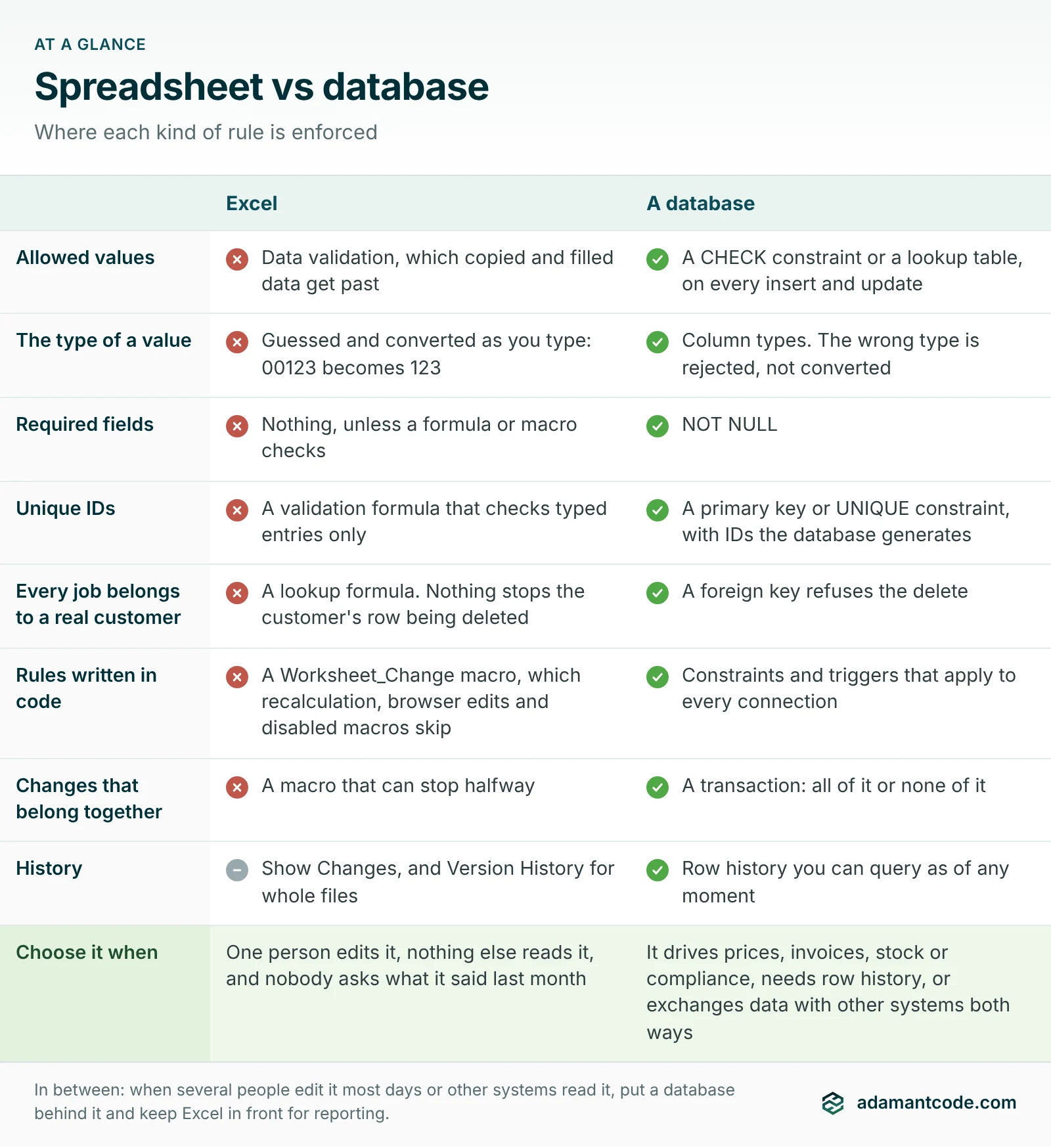
1. What a database enforces and a spreadsheet only suggests
A database checks its rules at the moment of writing, for every writer: a person, an import or another system. A spreadsheet checks some rules, for some writers, some of the time.
| Rule | In Excel | What gets past it | In a database |
|---|---|---|---|
| Allowed values, such as a status list or a positive amount | Data validation | Copied and filled data, with no message | A CHECK constraint or a lookup table, applied to every insert and update |
| A value is a number, a date or text | Excel guesses the type as you type or open a file, and converts it: 00123 becomes 123, JAN1 becomes a date, and a 16-digit number keeps 15 digits | Anything that looks like another type. Switching the conversions off (File > Options > Data) doesn't bring back digits already lost. | Column types. A value of the wrong type is rejected, not converted. |
| Required fields | Nothing, unless a formula or macro checks | Any blank | NOT NULL |
| Unique IDs | Only a custom validation formula, such as =COUNTIF($A:$A,A2)=1, which checks typed entries | Pasted rows, and two people typing "the next number" at the same time | A primary key or UNIQUE constraint, with IDs the database generates |
| Every job belongs to a real customer | A lookup formula into another sheet | Deleting or renaming the customer's row: the lookup breaks and nothing stops the delete | A foreign key: the delete is refused while jobs still point at the customer |
| Rules written in code | A Worksheet_Change macro | Cells changed by recalculation, which don't fire the event; anyone editing in a browser, since VBA runs in desktop Excel; anyone with macros disabled | Constraints and triggers, which apply to every connection |
| Changes that belong together | A macro that updates three sheets | A macro that stops halfway, leaving two of the three updated | A transaction: all of it or none of it |
| History | Show Changes lists who changed which cells and when. Version History restores whole files. | "What did this job say on the 1st?" means opening old copies of the file | Row history you can query as of any moment (below) |
Sources: Microsoft on the Worksheet.Change event ("does not occur when cells change during a recalculation"), VBA and Office Scripts (VBA is built into desktop Excel; Office Scripts have no events) and Show Changes. Our bulk import guide covers the conversions that damage imported IDs, with a check for each.
Test the validation you already have
- On every sheet with drop-down lists or input rules, run Circle Invalid Data to see where the invalid values sit. The inventory macro in section 4 counts them for each rule.
- For each circled value, ask who entered it and how. Paste and fill are the two routes validation doesn't cover.
- If the sheet stays a spreadsheet, close the easier route. Microsoft's fix is File > Options > Advanced, clear Enable fill handle and cell drag-and-drop, then protect the sheet. That option belongs to each person's Excel, not to the file (Application.CellDragAndDrop), so every editor has to clear it. Pasting into unlocked cells still works, so repeat the check every week.
Row history, which a spreadsheet can't give you
In SQL Server, a system-versioned temporal table copies the earlier version of a row into a history table every time the row is updated or deleted, stamped with the transaction's time in UTC. The table needs a primary key, and the feature is in every edition, including the free Express (temporal tables, SQL Server 2025 editions):
CREATE TABLE dbo.Jobs (
    JobNo      varchar(20)   NOT NULL PRIMARY KEY,
    Status     varchar(20)   NOT NULL,
    QuoteTotal decimal(12,2) NULL,
    ValidFrom  datetime2 GENERATED ALWAYS AS ROW START NOT NULL,
    ValidTo    datetime2 GENERATED ALWAYS AS ROW END NOT NULL,
    PERIOD FOR SYSTEM_TIME (ValidFrom, ValidTo)
) WITH (SYSTEM_VERSIONING = ON (HISTORY_TABLE = dbo.JobsHistory));

-- What did job J-1042 say at midnight UTC on August 1?
SELECT * FROM dbo.Jobs FOR SYSTEM_TIME AS OF '2026-08-01' WHERE JobNo = 'J-1042';
It records what changed and when. To record who, the application writes the signed-in user into a column on every save.
2. Several editors: what co-authoring fixes and what it leaves
Co-authoring lets several people edit one workbook at the same time if it's stored in OneDrive, OneDrive for Business or SharePoint Online. With AutoSave on, changes appear in real time (Microsoft). A workbook on a file server doesn't get it, so people take turns or save their own copies. Three problems remain even with co-authoring:
- Macros don't share memory. Excel synchronizes cells, not the values a macro or add-in holds in memory. A macro that read the next job number when the file opened can hand the same number to two people.
- Appending rows can lose edits. Microsoft's add-in guidance (June 2026) says that when an add-in adds table rows while co-authors edit the same table or nearby cells, Excel detects a merge conflict: a yellow bar asks people to refresh, and recent changes might be lost. Test any tool that appends rows to a shared table with two people editing at once.
- Nothing arbitrates. When two people change the same cell, the later edit wins and nothing checks whether its author saw the earlier one. A database can make the second write wait, and with a version number on each row, the application can refuse a save based on data that has since changed: optimistic concurrency.
For Sheets, Google documents a cap: up to 100 people with view, edit or comment access at once, beyond which only the owner and some editors can edit (Google Workspace). Few internal sheets get near it, so for Sheets the rules and history in section 1 decide.
Two checks for this week
- Count the writers. Open Show Changes on the busiest sheet and list everyone who edited it in the period shown. For a file on a file server, ask who saves it on a typical day. Our rule of thumb: two or more people adding or changing rows in the same table on most days is a database workload, however small the table.
- Look at how IDs are made. A number typed as "the last one plus one" collides when two people add rows at once. An ID computed by a formula, such as
=MAX(A$1:A1)+1or=ROW()-1, is worse: it recalculates when rows are sorted, inserted or deleted, so a job can change its number after it was quoted. The uniqueness check in our bulk import guide finds the collisions that already happened.
3. The limits, and which one arrives first
| Limit | Value | What it means for the decision |
|---|---|---|
| Excel worksheet | 1,048,576 rows by 16,384 columns per sheet (Microsoft) | Caps the biggest single table, usually a log of lines or transactions |
| Excel Data Model (Power Pivot) | In 32-bit Office, 2 GB per workbook and 4 GB of memory (Microsoft) | Holds data outside the grid for analysis. It solves size and does nothing for editing or rules. |
| Google Sheets | 20 million cells per spreadsheet, counting every tab, up from 10 million. Google announced general availability on September 10, 2026, and set September 28 as the start of the rollout to Scheduled Release domains (Google). | The cap is in cells, so a wide table fills it faster than a long one |
| Office Scripts in Excel on the web | 5 MB per request and five million cells per range. From Power Automate, 1,600 script runs per user per day (Microsoft). | If flows and scripts feed the workbook, it's already a system, and these are its caps |
| SQL Server Express, the free edition | 2025: 50 GB per database, the lesser of 1 socket or 4 cores, 1,410 MB of buffer pool memory. 2022: 10 GB. Neither includes SQL Server Agent (2025, 2022). | The database engine is rarely the cost. Without Agent, scheduled jobs need another scheduler. |
A worked example: rows against cells
An illustrative example. A job-costing workbook has a Lines tab 40 columns wide with 310,000 rows, growing by 9,000 rows a month. Its other tabs (customers, rates and lists) use 150,000 cells.
| Where it lives | Arithmetic | Months of room |
|---|---|---|
| Excel, 1,048,576 rows per sheet | (1,048,576 − 310,000) ÷ 9,000 | About 82 |
| Google Sheets, 20 million cells | (20,000,000 − 310,000 × 40 − 150,000) ÷ (9,000 × 40) | About 20 |
| Google Sheets at the old cap of 10 million cells | 310,000 × 40 = 12.4 million cells on one tab | None. It wouldn't have fit. |
Both leave room, and that's the trap: neither limit measures the problems in sections 1 and 2, and a pasted value or a lost edit can hit a workbook of 200 rows. Size alone is an analysis problem (section 5).
4. Inventory the workbook before you decide
Our legacy system examples show where a workbook hides rules inside its formulas, with a two-line check for hidden sheets and names. The macro below lists, in one pass, what the workbook reads, what runs inside it and what runs on its owner's PC, on a new sheet you can hand to anyone quoting a replacement.
In desktop Excel for Windows
- Open a copy of the workbook, not the live file.
- Let the macro read the workbook's VBA: File > Options > Trust Center > Trust Center Settings > Macro Settings, then tick Trust access to the VBA project object model. Microsoft recommends clearing it again as soon as the macro has run (security notes).
- Press Alt+F11, choose Insert > Module and paste the code. Click inside
InventoryWorkbookand press F5. The module you pasted appears in the list too; ignore it.
' Lists what makes a workbook a system on a new sheet. Run it on a copy.
Private inv As Worksheet
Private r As Long

Sub InventoryWorkbook()
    Dim wb As Workbook, ws As Worksheet, nm As Name, q As Object
    Dim cn As WorkbookConnection, links As Variant, rng As Range
    Dim comp As Object, ad As AddIn, i As Long, n As Long, s As String

    Set wb = ActiveWorkbook
    Set inv = wb.Worksheets.Add(Before:=wb.Sheets(1))
    inv.Name = "Inventory " & Format(Now, "yyyy-mm-dd hhnn")
    r = 1
    AddRow "Type", "Name", "Where", "Detail"

    For Each ws In wb.Worksheets
        If ws.Visible = xlSheetVeryHidden Then AddRow "Very hidden sheet", ws.Name, "", ""
        If ws.Visible = xlSheetHidden Then AddRow "Hidden sheet", ws.Name, "", ""
        If ws.ProtectContents Then AddRow "Protected sheet", ws.Name, "", ""
        Set rng = Nothing
        On Error Resume Next
        Set rng = ws.UsedRange.SpecialCells(xlCellTypeAllValidation)
        On Error GoTo 0
        If Not rng Is Nothing Then
            For i = 1 To rng.Areas.Count
                AddRow "Validation", ws.Name, rng.Areas(i).Address(False, False), _
                    RuleOf(rng.Areas(i).Cells(1, 1)) & " | " & CountInvalid(rng.Areas(i)) & " invalid now"
            Next i
        End If
        Set rng = Nothing
        On Error Resume Next
        Set rng = ws.UsedRange.SpecialCells(xlCellTypeAllFormatConditions)
        On Error GoTo 0
        If Not rng Is Nothing Then AddRow "Conditional formats", ws.Name, rng.Address(False, False), rng.CountLarge & " cells"
    Next ws

    For Each nm In wb.Names
        AddRow "Name", nm.Name, IIf(nm.Visible, "visible", "hidden"), nm.RefersTo
    Next nm

    links = wb.LinkSources(xlExcelLinks)
    If Not IsEmpty(links) Then
        For i = LBound(links) To UBound(links)
            AddRow "Reads workbook", "", "", links(i)
        Next i
    End If

    For Each q In wb.Queries
        AddRow "Power Query", q.Name, "", q.Formula
    Next q

    For Each cn In wb.Connections
        s = ""
        On Error Resume Next
        If cn.Type = xlConnectionTypeOLEDB Then s = cn.OLEDBConnection.Connection
        If cn.Type = xlConnectionTypeODBC Then s = cn.ODBCConnection.Connection
        On Error GoTo 0
        AddRow "Connection", cn.Name, "", s
    Next cn

    On Error Resume Next
    n = wb.VBProject.VBComponents.Count
    If Err.Number <> 0 Then
        AddRow "VBA", "", "", "Not readable: allow access in the Trust Center, or read it in the VBA editor"
        Err.Clear
    Else
        For Each comp In wb.VBProject.VBComponents
            n = 0
            n = comp.CodeModule.CountOfLines
            If n > 0 Then AddRow "VBA module", comp.Name, "", n & " lines"
            For i = 1 To n
                s = Trim(comp.CodeModule.Lines(i, 1))
                If s Like "Sub *" Or s Like "Private Sub *" Or s Like "Public Sub *" Then
                    If InStr(s, "Workbook_") > 0 Or InStr(s, "Worksheet_") > 0 Or InStr(s, "Auto_Open") > 0 Then
                        AddRow "Event macro", comp.Name, "line " & i, s
                    End If
                End If
            Next i
        Next comp
    End If
    On Error GoTo 0

    For Each ad In Application.AddIns
        If ad.Installed Then AddRow "Add-in on this PC", ad.Name, ad.FullName, ""
    Next ad
    s = Dir(Application.StartupPath & "\*.*")
    Do While s <> ""
        AddRow "Opens with Excel on this PC", s, Application.StartupPath, ""
        s = Dir
    Loop

    inv.Columns("A:C").AutoFit
End Sub

Private Sub AddRow(ByVal kind As String, ByVal itemName As String, ByVal location As String, ByVal detail As String)
    ' The apostrophe keeps values such as "=Sheet1!A1" as text
    inv.Cells(r, 1).Value = "'" & kind
    inv.Cells(r, 2).Value = "'" & itemName
    inv.Cells(r, 3).Value = "'" & location
    inv.Cells(r, 4).Value = "'" & Left(detail, 32000)
    r = r + 1
End Sub

Private Function RuleOf(ByVal c As Range) As String
    On Error Resume Next
    RuleOf = "type " & c.Validation.Type
    RuleOf = RuleOf & ": " & c.Validation.Formula1
End Function

Private Function CountInvalid(ByVal area As Range) As Long
    ' Validation.Value is False when a cell breaks its own rule
    Dim c As Range, ok As Boolean
    On Error Resume Next
    For Each c In area.Cells
        If Not IsEmpty(c.Value) Then
            ok = True
            ok = c.Validation.Value
            If Not ok Then CountInvalid = CountInvalid + 1
        End If
    Next c
End Function
How to read the new sheet:
- Very hidden sheet. Set from code, and missing from the Unhide list. Check whether visible formulas or validation lists point at it.
- Validation. The number is the rule type: 3 is a list and 7 a custom formula (XlDVType). "Invalid now" counts filled cells that break the rule today (Validation.Value), whether pasted past it or entered before it changed. A list that points at a hidden sheet is a rule someone maintains out of sight.
- Conditional formats. Colors that mean something, such as red for overdue, are rules the new system has to state in words.
- Reads workbook and Power Query. Every file and source this one reads. A path under
C:\Users\means the refresh works on one person's PC only. - Connection. Connection strings name servers and databases. If one contains a password, the password is stored in the file.
- Event macro.
Workbook_Openruns whenever the file opens;Worksheet_Changeruns on edits, with the gaps listed in section 1. - Add-in and "opens with Excel". Code that lives on this PC rather than in the file: installed add-ins, and files in Excel's startup folder, which open whenever Excel starts. Nobody else has them, and they go when this PC does.
With an Office Script, in Excel on the web or on a Mac
Office Scripts run in Excel on the web, for Mac and for Windows (version 2210 or later), with OneDrive for Business and a Microsoft 365 business or education license (Microsoft). They can't read VBA, connection strings or a query's source, so this script covers the rest. Create a new script on the Automate tab and paste it:
// Lists hidden sheets, names, queries, links and validated ranges on a new sheet.
function main(workbook: ExcelScript.Workbook) {
  const rows: string[][] = [["Type", "Name", "Where", "Detail"]];
  const names: ExcelScript.NamedItem[] = [...workbook.getNames()];
  for (const sheet of workbook.getWorksheets()) {
    const visibility = sheet.getVisibility();
    if (visibility !== ExcelScript.SheetVisibility.visible) {
      rows.push(["Hidden sheet", sheet.getName(), "", visibility === ExcelScript.SheetVisibility.veryHidden ? "very hidden" : "hidden"]);
    }
    names.push(...sheet.getNames());
    const used = sheet.getUsedRange();
    const validated = used ? used.getSpecialCells(ExcelScript.SpecialCellType.dataValidations) : undefined;
    if (validated) rows.push(["Validated cells", sheet.getName(), validated.getAddress(), validated.getCellCount() + " cells"]);
  }
  for (const n of names) {
    rows.push(["Name", n.getName(), n.getVisible() ? "visible" : "hidden", "refers to " + n.getFormula()]);
  }
  for (const q of workbook.getQueries()) {
    rows.push(["Power Query", q.getName(), "loaded to " + q.getLoadedTo(), q.getRowsLoadedCount() + " rows, refreshed " + q.getRefreshDate()]);
  }
  for (const link of workbook.getLinkedWorkbooks()) {
    rows.push(["Linked workbook", "", "", link.getId()]);
  }
  const inventory = workbook.addWorksheet("Inventory");
  inventory.getRangeByIndexes(0, 0, rows.length, 4).setValues(rows);
}
Find the files that read this one
Excel shows which files a workbook reads, but nothing inside a workbook shows which files read it. An .xlsx or .xlsm file is a zip archive, and each link to another workbook is a small part inside it holding the linked file's path: xl/externalLinks/_rels/externalLink1.xml.rels, then externalLink2 and so on. So this PowerShell script can check a whole shared drive without opening anything in Excel:
# Lists every link from an .xlsx or .xlsm file under a folder to another workbook.
# It reads the files as zip archives, so nothing opens in Excel and no macros run.
Add-Type -AssemblyName System.IO.Compression.FileSystem
$root = '\\fileserver\shared'   # the folder to scan

Get-ChildItem -Path $root -Recurse -File -Include *.xlsx, *.xlsm -ErrorAction SilentlyContinue |
ForEach-Object {
    $file = $_.FullName
    $zip = $null
    try {
        $zip = [System.IO.Compression.ZipFile]::OpenRead($file)
        $parts = $zip.Entries | Where-Object { $_.FullName -like 'xl/externalLinks/_rels/*.rels' }
        foreach ($part in $parts) {
            $reader = New-Object System.IO.StreamReader($part.Open())
            $xml = [xml]$reader.ReadToEnd()
            $reader.Close()
            foreach ($rel in $xml.Relationships.Relationship) {
                [pscustomobject]@{ Workbook = $file; LinksTo = [uri]::UnescapeDataString($rel.Target) }
            }
        }
    } catch {
        Write-Warning "Could not read $file"
    } finally {
        if ($zip) { $zip.Dispose() }
    }
} | Export-Csv -Path .\workbook-links.csv -NoTypeInformation -Encoding UTF8
Open workbook-links.csv and filter the LinksTo column for your workbook's file name. Each row is a file that depends on yours keeping its name, place and layout. The linking file also keeps a copy of the values it last read, so a moved source can leave it showing old numbers instead of an error. A path with no folder, such as Prices.xlsx, is relative and works only while both files share a folder. The script covers .xlsx and .xlsm; older .xls files aren't zip archives.
This week: run the macro on a copy of your most important workbook and the link scan on the drive it lives on, then ask the workbook's owner to explain each row.
5. Keep it, harden it, put a database behind it, or replace it
Use the inventory and the checks from sections 1 and 2. Start at the top: the first row that matches decides.
| What you found | Decision | First step |
|---|---|---|
| It drives prices, invoices, stock or compliance, needs row history, or exchanges data with other systems both ways | Replace it with an application on a database | Section 6, then the integrate, replace or build decision in our guide to custom versus off-the-shelf software |
| Several people add or change rows most days, other files or flows read it, or a rule must hold for every writer | Put a database behind it and keep Excel in front for reporting | Tables with the constraints from section 1. People edit through a form or a small app, and Excel reads a database view through Power Query, so existing pivot tables keep working. |
| It's big or slow, but only for analysis | Keep Excel. This isn't a database project. | Load the large table into the Data Model with Power Query instead of the grid |
| One person edits it, nothing else reads it, and nobody asks what it said last month | Keep it and harden it | The validation check from section 1 every week, fill handle and drag-and-drop off on the editor's PC, formula columns protected, and the inventory saved next to the file |
The third row is the one most people get wrong. A slow 600,000-row workbook feels like the strongest case for a database, but if one person edits it and everyone else only reads it, the problem is where the data is loaded, not where it's stored. In the Data Model, the table no longer counts against the grid's 1,048,576 rows.
For the second row, the database needn't be big or expensive: SQL Server Express is free (limits in section 3), and PostgreSQL's license allows use "without fee" (PostgreSQL). For a simple shared list with few rules, Microsoft Lists is a lighter step.
6. A migration order that moves the rules first
A workbook migration goes wrong when the data arrives without its rules: the new system accepts values the sheet would have caught, or prices differently because a markup lived in a formula nobody listed. So the rules move first.
| Step | What to do | Done when |
|---|---|---|
| 1. Freeze and count | Save a dated, read-only copy. For each tab, record the row count, the total of each amount column and the latest date. | The counts are written at the top of the rules register |
| 2. Inventory | Run the macro and the link scan from section 4 | Every row has an owner and a one-line purpose |
| 3. Rules register | One row per rule, in the template below | The workbook's owner has marked each rule keep, change or retire |
| 4. Golden cases | Pick 20 to 30 real past cases, including the unusual ones. Put their inputs through a copy of the workbook and save the outputs as values. | The saved outputs match what was actually sent: the quote, the invoice or the schedule |
| 5. Tables and constraints | Turn each "keep" rule into a column type, NOT NULL, CHECK, UNIQUE, foreign key or lookup table. Build nothing for retired rules. | Each register row names where its rule now lives |
| 6. Stage and check the data | Load each tab as text and run the check below. Send each failing row back to its owner with its sheet row number. | The check returns no rows, or every remaining row has a decision |
| 7. Parallel run | Run both for one full cycle, such as a month-end. Compare the step 1 counts and the golden cases. | No unexplained differences |
| 8. Cut over | Remove edit permission on the workbook, move it to an archive folder, turn on row history and point reports at database views | Nobody can type into the old file |
Step 4 is the replay technique from our guide to legacy system challenges, applied to a workbook: the saved outputs become the tests the new system has to pass.
The rules register
This is the Rules sheet from our legacy system examples, with the three columns a migration adds: an example, the owner's decision and where the rule will live. The two rows are an illustrative example.
| Rule, in one sentence | Where it lives now | Example | Keep, change or retire | Where it will live |
|---|---|---|---|---|
| A job's status is Quoted, Booked, Done or Lost | Validation list on Jobs, fed from the very hidden sheet Lists | J-1045 says "done " with a trailing space | Keep | CHECK constraint |
| Quotes carry an 18% markup, 12% for customers on the trade list | Numbers typed into the formulas in Jobs!K2:K4000 | The quote for J-1041 | Change: trade becomes 14% | A pricing table the office manager edits |
Stage the data as text, then check it
Before exporting a tab, add a last column headed sheet_row and fill it with =ROW(), so every problem points back to a row. Save the tab as CSV UTF-8 and load it into a staging table where every column is text, so nothing is refused or converted on the way in. Then one query lists every row the real tables would refuse, with its first problem. This is for PostgreSQL 16 or later, where pg_input_is_valid tests a value without raising an error (PostgreSQL docs). The example is a job tracker with day/month/year dates:
-- 1. Staging: every column as text, in the sheet's order, with the sheet row last
CREATE TABLE stage_jobs (
  job_no      text,
  customer    text,
  status      text,
  due_date    text,
  quote_total text,
  sheet_row   integer
);
\copy stage_jobs FROM 'jobs.csv' WITH (FORMAT csv, HEADER true, ENCODING 'UTF8')

-- 2. Every row the real tables would refuse, with its first problem
SET datestyle = 'ISO, DMY';   -- the sheet's dates are day/month/year
SELECT * FROM (
  SELECT sheet_row, job_no,
    CASE
      WHEN coalesce(trim(job_no), '') = ''          THEN 'no job number'
      WHEN count(*) OVER (PARTITION BY job_no) > 1  THEN 'duplicate job number'
      WHEN coalesce(trim(customer), '') = ''        THEN 'no customer'
      WHEN status IS NULL OR status NOT IN ('Quoted', 'Booked', 'Done', 'Lost')
                                                    THEN 'status not in list: "' || coalesce(status, '') || '"'
      WHEN trim(due_date) <> '' AND NOT pg_input_is_valid(trim(due_date), 'date')
                                                    THEN 'not a date: ' || due_date
      WHEN trim(quote_total) <> '' AND NOT pg_input_is_valid(replace(quote_total, ',', ''), 'numeric(12,2)')
                                                    THEN 'not an amount: ' || quote_total
    END AS problem
  FROM stage_jobs
) checked
WHERE problem IS NOT NULL
ORDER BY sheet_row;

-- 3. The real tables: the rules register, made enforceable
CREATE TABLE customers (
  customer_id  integer GENERATED ALWAYS AS IDENTITY PRIMARY KEY,
  name         text NOT NULL UNIQUE
);
CREATE TABLE jobs (
  job_no       text PRIMARY KEY,
  customer_id  integer NOT NULL REFERENCES customers,
  status       text NOT NULL CHECK (status IN ('Quoted', 'Booked', 'Done', 'Lost')),
  due_date     date,
  quote_total  numeric(12,2) CHECK (quote_total >= 0)
);
In SQL Server, TRY_CONVERT does the same job: TRY_CONVERT(date, due_date, 103) returns NULL instead of failing when the text isn't a valid dd/mm/yyyy date (TRY_CONVERT, date styles). The check is strict on purpose: "done " with a trailing space got past the sheet's list because it was pasted, and the CHECK constraint refuses it.
If a workbook in your business has become a system, run the inventory and bring the Inventory sheet, the link scan and the first page of your rules register. We'd start with the rules marked "keep" and the golden cases, because they decide what any replacement has to do, whether that's a database behind the sheet or a new application. Our custom business software work starts there.